1.ME2A


2. ME22N

Have you ever wanted to skip or eliminate records from the results of your SAP Query without filters? There are two easy ways. You can do it through a small bit of ABAP in the Infoset or via a hidden selection variable in the Infoset. In both cases, the criteria field for eliminating the records must exist in the join of your Infoset.
Method #1
Use the menu path Goto | Code | Record processing.
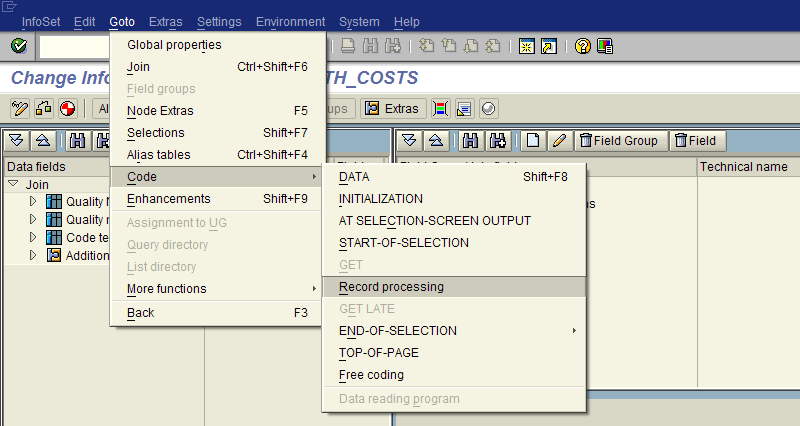
In the code window, enter code using the following template:
CHECK table-field NE value.
where table-field is the appropriate table name and field name and value is the criteria value.

In the example above, the criteria field is QMFE-KZLOESCH (deletion flag on quality notification items) and the criteria value is ‘X’. The ABAP command CHECK effectively kicks out this record during the processing because it does not meet the criteria. As you might expect, this method also provides some additional flexibility with respect to which records are skipped. For example, if the criteria field is part of a table attached with a left outer join, you could add an IF…THEN statement to skip over the CHECK statement. This method is quite concealed from the end user and may be difficult to troubleshoot for someone not familiar with coding in SAP Infosets.
Method #2
Use the menu path Goto | Selections (or press Shift+F7).

Click on the “Create” button (the blank white sheet of paper).

Make sure that the “Selection criterion” option is selected and enter a name for the selection variable. Although this name does not need to be meaningful, if you have several variables a meaningful name will help you to differentiate them.

In the example above, I used a prefix “s” for selection criteria and “delflg” to indicate that this variable will reference the deletion flag. Click the green check to continue. Another popup window appears where you will need to provide additional information for this selection criterion.

At a minimum, you will need to provide a description and a reference field (“FOR”). This reference field provides the link between this new variable and the table & field in your join – the system will confirm that you have provided an appropriate table & field name. In the example above, the field is the same as mentioned previously, QMFE-KZLOESCH. I make it a practice to enter the selection text as well. If you entered no other data that what is described above, you would have a selection screen variable.
The trick that skips the record is found in the “Extras” field. In this field, use the following template:
DEFAULT value OPTION NE NO-DISPLAY
where value is the criteria value discussed in method #1 which distinguishes the records to be skipped. In this case, that value is ‘X’. The keyword OPTION and modifier NE have the effect of excluding records that are not equal to ‘X’. The keyword NO-DISPLAY hides the selection variable from the screen. You could consider removing this keyword to provide full transparency to the end user. The limitation of using this approach is that no additional criteria can be built around this variable. Certainly, other selection criterion can be added as necessary.
https://blogs.sap.com/2019/07/17/employee-as-a-business-partner-and-synchronization-with-hr-data/
Hello All,
In this blog will see how to create Employee as a Business Partner which involves HCM Module as well, let me quickly explain why it’s required to create employment as a BP.
As with 1511 onwards, BP is mandatory and also Employee with User ID assignment is mandatory for a few of the Fiori Apps like Work Flow & Supplier Evaluation, so that’s the reason Employee has to be created as BP and Syncronized with HR Data
Now, let us start the process.

2. Select Actions Infotype and click create
3. Enter the Parameters as shown Below

4. Click save it will name next screen
5. Maintain Employee details

6. Click on save will take to next screen
7. Enter sub-area

8. Save

9. Maintain Address

10. Select main back (0)
11. Save

12. In the highlighted area select info type “communication” and sty “00001”
13. Click on Create

14. Enter the USER ID and save
NOW Employee is created with Personnel Number
15. BP Creation Go to BP T.Code
16. Select BP Category as Person and BP Grouping as “BPEE”
17. Enter all the Parameters as per the requirement as shown Below

18. Once all details are filled click on check to validate details.
19. Go to Identification Tab

20. In ID Type enter HCM001 and previously created personal number in PA30 and click save
21. Now select FLNV00 role and click company code

22. Enter CC and Reconciliation account and scroll down

23. Enter the personal number and save
24. Now select FLVN01 Roll and select Pur.Org

25. Enter Pur.org and Order Currency and save
26. Now Select FS0000 roll and open company code and check its extended or not and save
27. Select BUP001 Role and check all address details are populating or not and save
28. With this BP is created
Now Synchronization with EMP and BP
 4. Give the personal number which is created in PA30 and run the program
Object SHCM_EE_INTEGRATION
Subobject BUPA_SYNC
 7. Once object & Sub-Object are maintained as shown Above execute the log.

Its Synced with BP as shown
Now Fiori Apps Like Manage Work Flow or Manage Purchasing Categories your Employee ID with USER ID details will be shown or else we can’t perform those activities as Fiori is the only option to perform those activities these steps are mandatory
Thank you. please provide your feedback and Share with Others as well ?
Sometimes when tansfer Number Range of vendor/Customer to target client, Number range with the default value maybe overlap the Number range to be transfered. So we should delete the default Number range and then thansfer to target system.
Function MEX_FELDAUSWAHL_SACHKONTO
Table TMODP
Condition:SPRAS='J' , FAUNA = 'SKB1-FAUS1'
Compare: FAUS1 of Table T162K and T004F
DO 50 TIMES VARYING L1 FROM T162K-FAUS1(1) NEXT T162K-FAUS1+1(1)
range t162k-faus1
VARYING L2 FROM T004F-FAUS1(1) NEXT T004F-FAUS1+1(1)
range t004f-faus1
VARYING L3 FROM STRING(1) NEXT STRING+1(1)
range string.
COUNT = COUNT + 1.
* Finanzposition, Finanzstelle und Geldgeber nach Rücksprache mit
* Holger Jung zu 3.0 nicht verproben, da nicht in Kontierung pflegbar,
* sondern nur über Sonderlocke
* CHECK COUNT NE 20. "Finanzposition
* CHECK COUNT NE 49. "Finanzstelle
* CHECK COUNT NE 50. "Geldgeber
CHECK COUNT GE 9. "Materialnummer (Stelle 9) bewußt mit reingenommen
UNPACK COUNT TO MODIF.
IF L1 = '+'
AND L2 = '-'.
TMODP-MODIF = MODIF.
PERFORM FELDAUSWAHL_FEHLER.
ENDIF.
IF L1 = '-'
AND L2 = '+'.
TMODP-MODIF = MODIF.
* PERFORM FELDAUSWAHL_FEHLER. "nicht mehr ab 4.0B TK 89897
ENDIF.
* CHECK COUNT NE 20. "Finanzposition "173298
* CHECK COUNT NE 49. "Finanzstelle "173298
* CHECK COUNT NE 50. "Geldgeber "173298
IF L1 = '.' "ab Release 2.1
AND L2 = '-'.
TMODP-MODIF = MODIF.
perform check_t162x using tmodp-modif. "4.6A TK
if sy-subrc eq 0. "4.6A TK
PERFORM FELDAUSWAHL_FEHLER.
endif. "4.6A TK
ENDIF.
IF L1 = '.' OR
L1 = SPACE.
L3 = L2.
ELSE.
L3 = L1.
ENDIF.
ENDDO.
*------- ... Geschaeftsbereiche bilanzfaehig ? -------------------------
IF T001-XGSBE NE SPACE
AND STRING+32(1) EQ '-'.
STRING+32(1) = '.'.
ENDIF.
Maintenance Status Group of Account No.
OBC4 (FS00----->TAB Create / bank / interest: Click Field status Group)
Maintenance Account Asignment Categories
OME9
NG Pattern: (L1 T162F, L2 T004F)
IF L1 = '+'
AND L2 = '-'.
TMODP-MODIF = MODIF.
PERFORM FELDAUSWAHL_FEHLER.
ENDIF.
IF L1 = '.' "ab Release 2.1
AND L2 = '-'.
TMODP-MODIF = MODIF.
perform check_t162x using tmodp-modif. "4.6A TK
if sy-subrc eq 0. "4.6A TK
PERFORM FELDAUSWAHL_FEHLER.
endif. "4.6A TK
ENDIF.
Set Break Point at
FORM feldauswahl_fehler.
SELECT SINGLE * FROM tmodp WHERE spras = sy-langu
AND fauna = 'SKB1-FAUS1'
AND modif = tmodp-modif.
IF sy-subrc EQ 0.
MESSAGE e045 WITH skb1-saknr t162k-knttp tmodp-ftext.
ELSE.
MESSAGE e045 WITH skb1-saknr t162k-knttp tmodp-modif.
ENDIF.
ENDFORM. " FE
